Troubleshooting Guide
This guide covers common issues encountered when using Object Mount, along with clear steps to resolve them.
If you’re stuck, this is a good first place to check!
Still stuck?
- Reach out to others in the Storj Community Forum
- Or open a ticket with our Storj Support Team
Common Issues
Here are a few common issues to be aware of:
- POSIX mode requires write access and may silently fail if credentials are read-only.
- Mac Finder & Windows Explorer progress bars may not reflect actual transfer status. — Monitor network activity instead.
- Avid Media Composer has limited tolerance for long mount paths & non-local scratch files.
- Some S3-compatible providers require manual configuration (e.g. region or endpoint overrides).
- Mounts cannot currently be shared across users on the same machine (per-user context only).
Mount Doesn’t Appear or Won’t Activate
Possible Cause(s):
- Incorrect credentials
- No accessible buckets
- Dependency not installed (e.g.: macFUSE)
- POSIX mode enabled without write access
Things to Check:
- Verify your license is active
- Windows and macOS: Click the About tab
- Linux: run
cuno creds list
- Re-import your credentials and confirm bucket visibility
- Ensure dependencies are installed:
- macOS: macFUSE
- For read-only mounts, disable POSIX mode
Credentials Work Elsewhere, but Fail in Object Mount
Possible Cause(s):
Some S3-compatible providers require custom regions, endpoints, or flags.
Things to Check:
- Review the instructions on the Other S3 Compatible tab in the S3 Credential Management article
- Be sure to select your provider from the dropdown
- Set an explicit region (e.g.
us-east-1) - Ensure the endpoint is reachable from your network
Note: For Storj Object Storage, make sure the buckets are lexicographically ordered for best results.
Mount Is Very Slow or Freezes
Possible Cause(s):
- High latency to cloud provider
- File system operations triggering too many API calls
- No caching or prefetch enabled
Things to Check:
- Enable data cache and metadata cache in Preferences
- Set
CUNO_OPTIONS = -filePrefetchto disable file pre-fetching - Increase S3 connection pool (e.g. 150-200 for 1Gbps+)
- Avoid using POSIX mode unless required
- Place cache directories on an internal SSD
“Leave Files in Place” Doesn’t Work in Creative App
Possible Cause(s):
Some NLE Applications may try to verify write access or expect native macOS behavior.
Things to Check:
- Are you trying to import from a mounted Object Mount volume?
- Is POSIX mode conflicting with permission checks?
- Try relinking or using proxy workflows instead
Logs Don’t Show Much Info
Possible Cause(s):
By default, logging is set to error only.
Things to Check:
Enable more detailed logging:
- Go to Preferences > Advanced Settings
- Set Log Level to
debugortrace - Reproduce the issue
Check the logs at:
- macOS:
~/Library/Application Support/Object Mount/cunoFS.log - Windows:
C:\Users\%username%\AppData\Local\Object Mount\cunofs.log
Files Are Stalling on Paste
Things to Check:
If files are stuck during paste:
These features bypasses the Mac and Windows native copy tools and uses Object Mount’s optimized transfer logic.
Still Not Working?
If you still need assistance in resolving your issue, follow the steps below to enable detailed logging and send the log files to the Storj Support team.
For macOS and Windows environments:
Run Object Mount, choose the Settings tab, and scroll down to Advanced Settings:
Change the “Object Mount log level” to
Trace.Set “Filesystem debug logging” to
On.Click the Apply button.
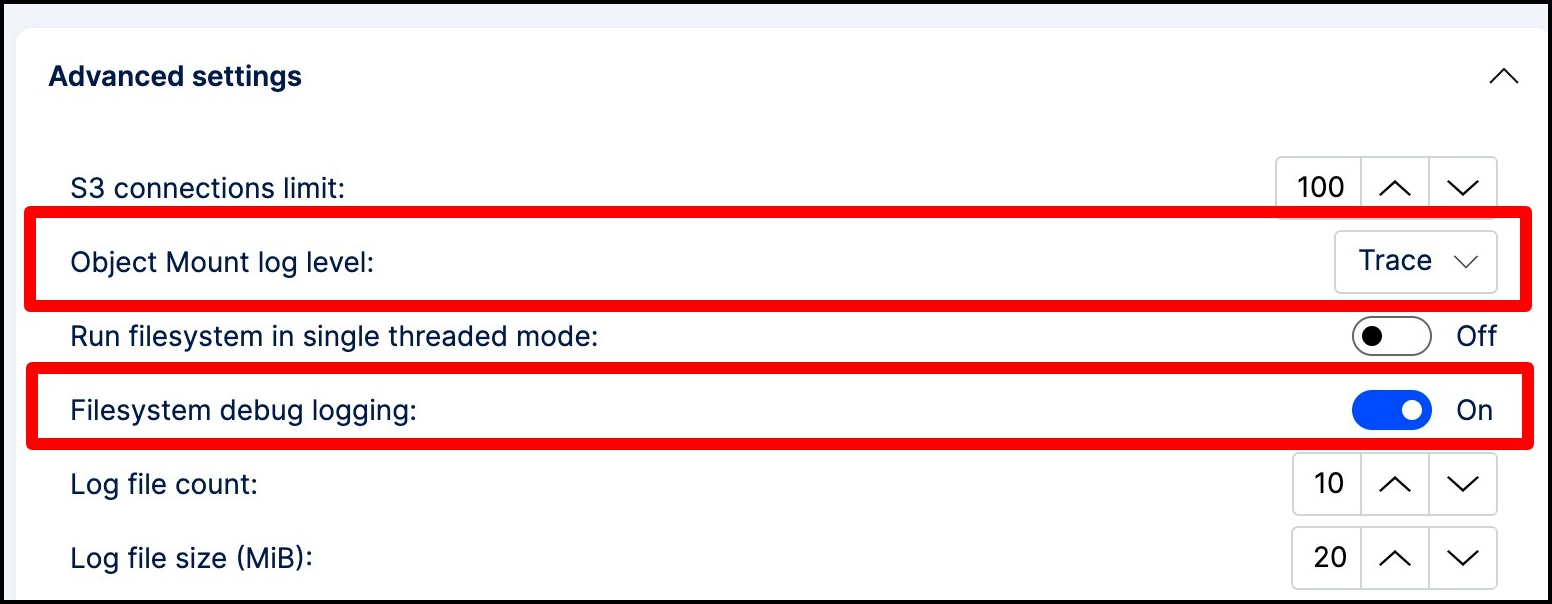
Choose the About Tab:
Click Report Issue.
Enter a Title.
Enter details and/or Steps to Reproduce the issue.
Ensure that Include my system information is checked.
Click the Continue button.
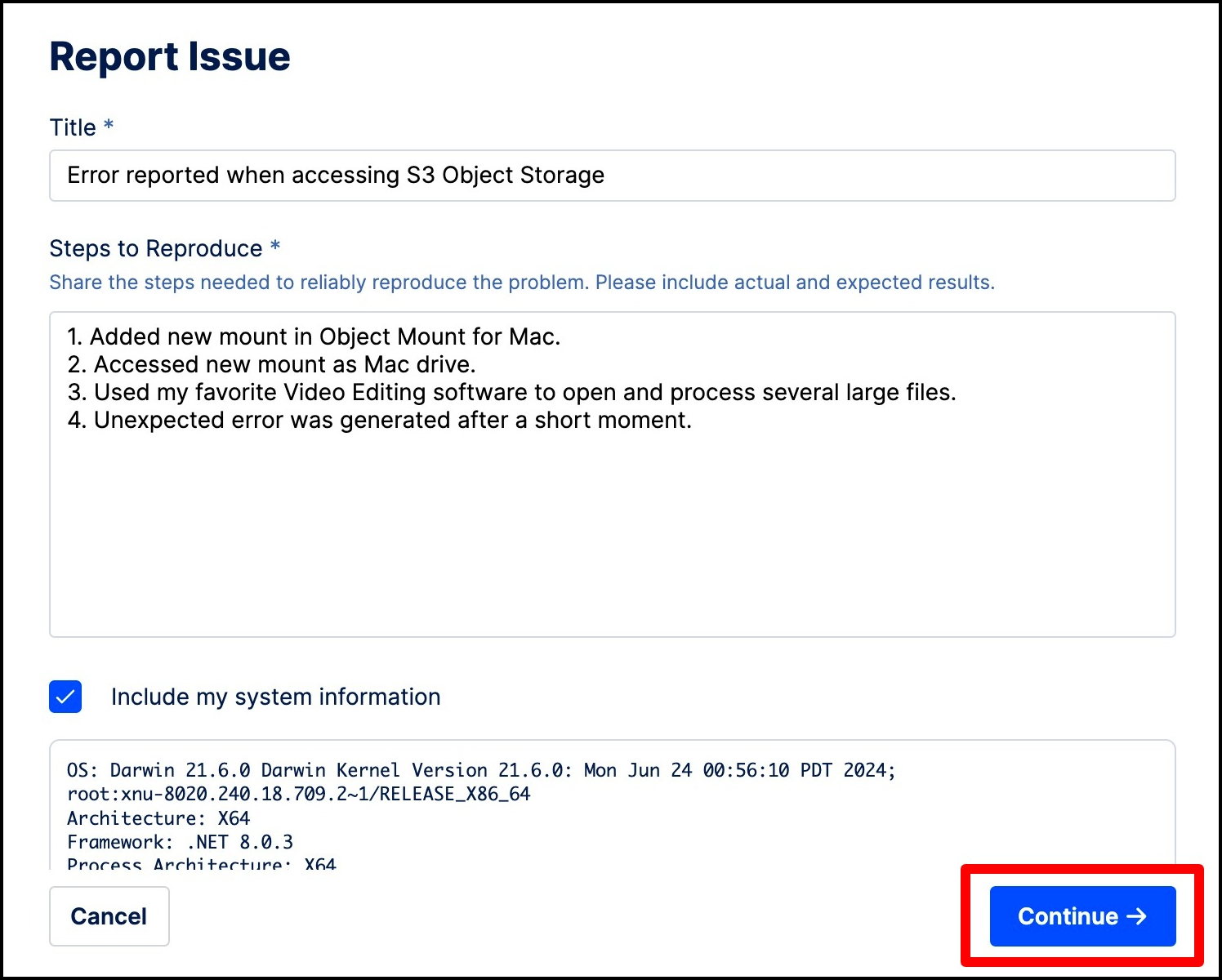
Save the Issue Report:
Name your
.zipfile.Click Save to store a
.zipfile on your local drive.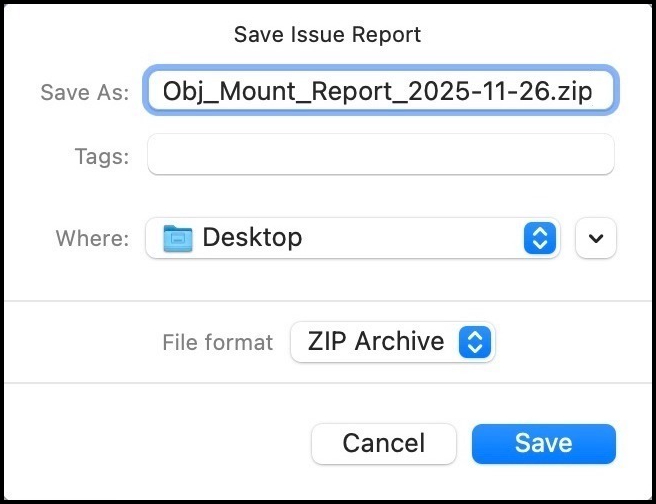
Attach the
.zipfile and send the report:Click the Submit Via Email button:
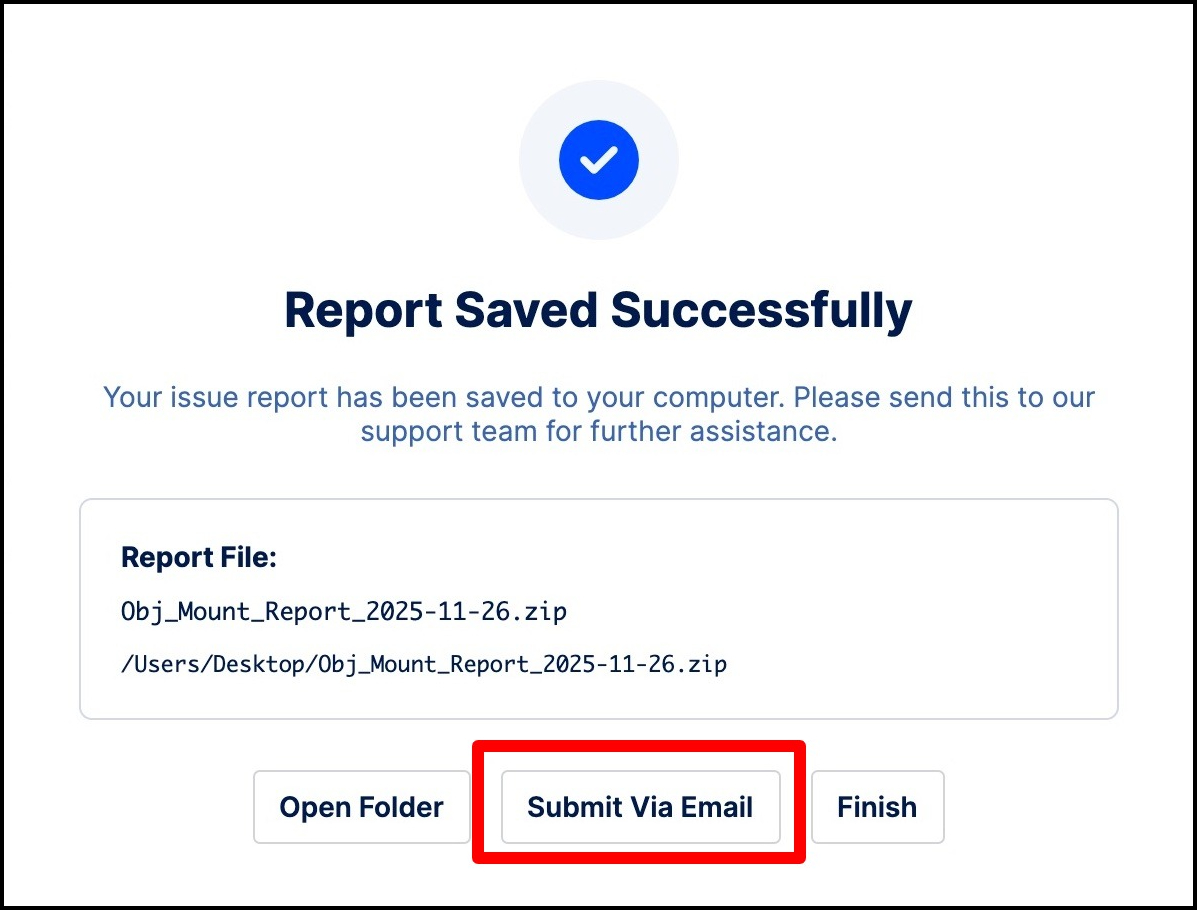
Your default Email application will load with content preloaded.
IMPORTANT: You must manually attach the
.zipfile to the email!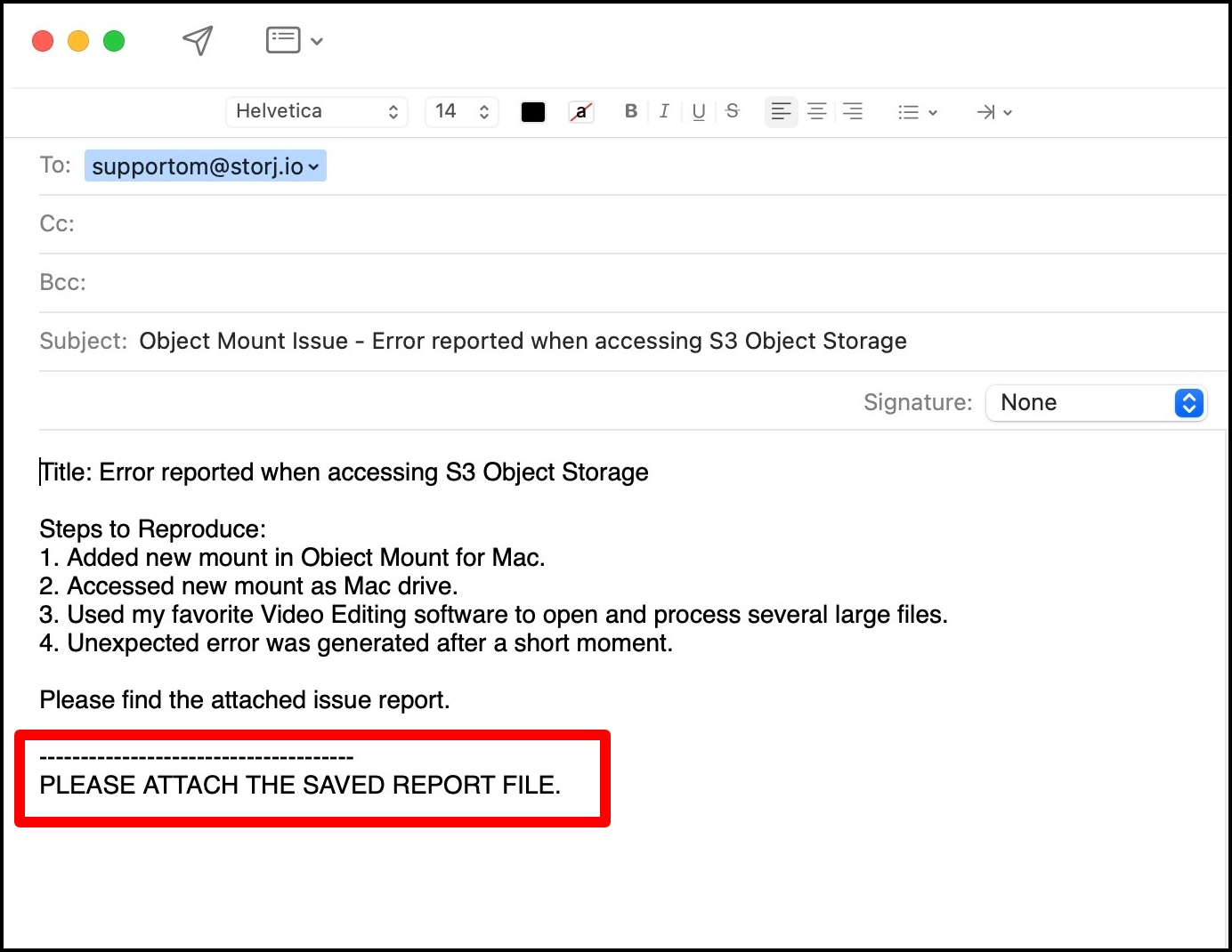
Once attached, click to Send the message to the Storj Object Mount support team.
Alternatively, you can open a support ticket and include:
- OS and Object Mount version
- Cloud provider and bucket name
- Screenshots or log excerpts
- Steps to reproduce the issue