Feature Guide: Windows Native App
This guide provides details on unique and noteworthy features that are specific to the Windows Native App of Object Mount.
Features that are global and apply to all OS versions of Object Mount (macOS, Windows, Linux) can be found in the Global Features section below.
Fast Paste on Windows
Fast Paste provide a much faster way to upload files to your object storage — ideal when working with large media assets or entire folder trees of content.
To use Fast Paste:
Copy a file or folder from your local drive as normal: using CTRL+C or right-click + Copy.
Navigate to an Object Mount drive and directory.
Right click and choose the Fast Paste here menu option (shown with a white and blue Object Mount icon).
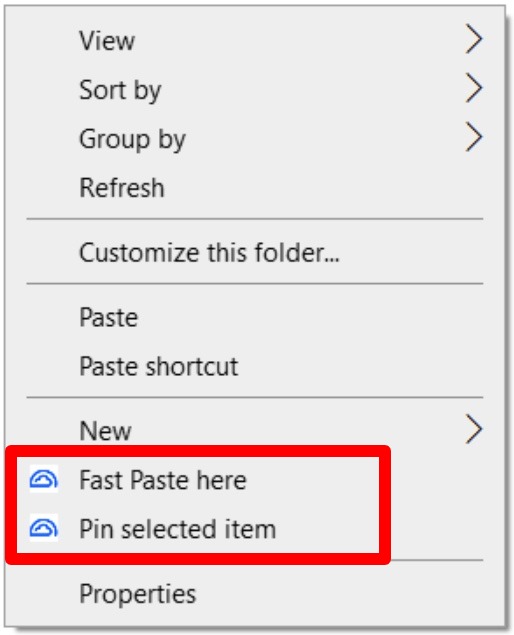
When to Use Fast Paste
Using Fast Paste is ideal when you want to:
- Move large files (media footage, projects, renders, etc.) or large folder trees from a local disk to a mounted S3 bucket
- Copy large files or folders from one Object Mount volume to another Object Mount volume
- Improve performance on high-latency networks (or slow remote S3 endpoints)
- Avoid the bottlenecks of Windows’ standard file operations
How Fast Paste Works
Standard copy and paste actions performed by Windows (Ctrl+C/Ctrl+V, or right-click + Copy/Paste) invokes Windows’ built-in file I/O calls. These standard file operations copy data one block at a time, without any awareness of how cloud storage works. This can lead to slow performance — especially for large files or nested folder structures.
Fast Paste bypasses the standard OS-based write calls and instead:
- Reads the files from the Windows clipboard using native Windows I/O calls
- Streams files up to the mount using multipart-aware and concurrent upload operations tuned for S3-compatible storage
A live progress indicator will be displayed when you use Fast Paste:
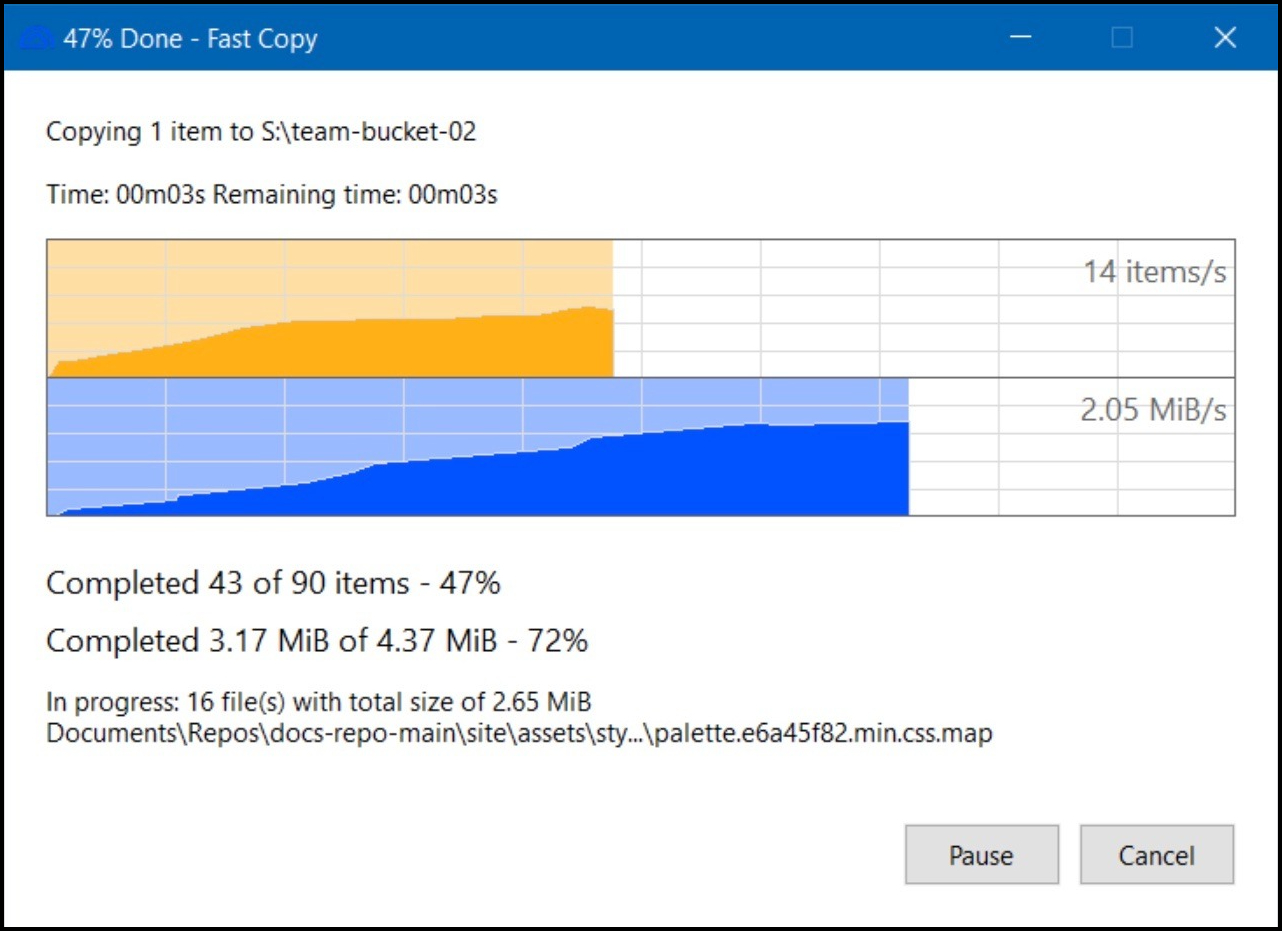
Additionally, Fast Paste:
- Respects your mount settings (e.g.: POSIX mode, cache location)
- Applies performance and tuning options (cache settings & location, multipart thresholds, etc.)
- Logs operations to the standard Object Mount log file
Use Cases for using Fast Paste
- Store original media locally, then copy and Fast Paste it to cloud when ready.
- For large archive folders, use copy then Fast Paste to quickly duplicate them into your S3 bucket.
- Use Fast Paste to free up local storage when archiving to the cloud.
File Pinning on Windows
Starting with Object Mount v1.0.5, you can now pin files in Windows to ensure they remain in the local Object Mount cache.
This improves performance and is especially useful for:
- Preventing delays when reopening large media assets
- Ensuring critical project files stay cached locally
What Does File Pinning Do?
When you pin a file, Object Mount:
- Downloads and stores the file in Object Mount’s local data cache
- Prevents the file from being evicted due to cache size limitation settings
- Flags the file for persistent caching, even across restarts
Windows File Pinning
Pinning does not duplicate or move the file elsewhere. It simply marks the file as persistent in the Object Mount local cache.
Important: Pinned files do not remain accessible when Object Mount is off-line, or when your mount is disabled or disconnected. An active, live connection is still required for access, even when a file is pinned.
Pinning Files
To Pin a file:
Right-click any file stored within an Object Mount volume.
Select the Pin selected item menu option (shown with a white and blue Object Mount icon).
A small icon overlay in File Explorer will indicate the file is pinned: 🟢
To Unpin a file:
- Right-click the file and choose Unpin selected item.
Note: Currently you can only pin individual files, not entire folders.
Pinned files can be identified by:
A visual “green dot” 🟢 overlay indicator when viewed in File Explorer
Their status in the Object Mount logs
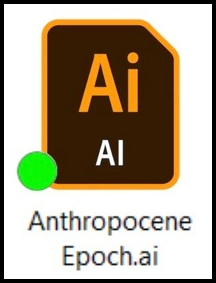
Note: A restart may be necessary before you will see the “pinned file” indicator.
Pinned Files & Cache Space
- Pinned files do not count toward the maximum data cache size set in the Settings tab of Object Mount.
- However, pinning requires that the Data Cache be enabled.
- If the Data Cache is disabled, the pinning menu items will no longer be displayed.
- When the Data Cache is re-enabled, any previously pinned files will retain their pinned status.
Clearing the Cache
If you click Clear Caches in the Settings tab of Object Mount, all pinned files will be removed from the cache and will revert to an “unpinned” status.
Best Practices for Using Pinning
Use Pinning to:
- Keep critical assets readily available without re-downloading
- Avoid cache eviction for large files you frequently revisit
- Preload media for use in slow-bandwidth environments
Global Features & Concepts
See the many articles in the Appendix for additional details on features that apply to Object Mount on all operating systems (macOS, Windows, and Linux):
- Object Storage Core Concepts
- POSIX explained
- S3 Credential Management
- Supported S3 Providers
- Performance Tuning
- Troubleshooting Guide
- FAQ
- Release Notes