Feature Guide: macOS Native App
This guide provides details on unique and noteworthy features that are specific to the macOS Native App of Object Mount.
Features that are global and apply to all OS versions of Object Mount (macOS, Windows, Linux) can be found in the Global Features section below.
Fast Copy and Fast Move
Starting with v1.0.4, Object Mount for macOS now supports Fast Copy and Fast Move options directly from the Mac Finder.
- Note: macOS 13 Ventura (or later) is required to use Fast Copy and Fast Move.
Fast Copy and Fast Move provide a much faster way to upload files to your object storage — ideal when working with large media assets or entire folder trees of content.
Once enabled, two new context-sensitive menu options will be displayed when you right-click on a file or folder on the Mac’s Desktop or within the Finder:
Object Mount > Fast Copy To...
Object Mount > Fast Move To...
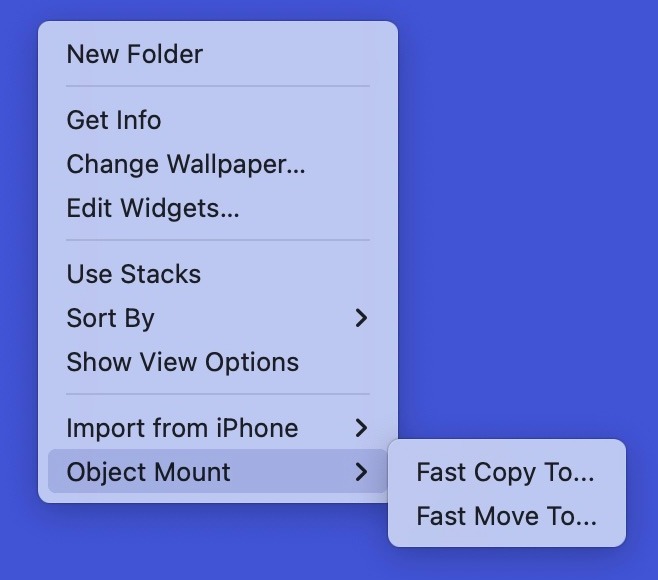
Enabling Fast Copy and Fast Move
Fast Copy and Fast Move are enabled through a Finder Extension. The extension must be manually activated.
Follow the steps below to enable Fast Copy and Fast Move in two places within the Mac’s System Settings:
Open System Settings.
Navigate to General → Login Items & Extensions.
Scroll down to the Extensions section.
Click the Info Circle
(i)next to File Providers.- Activate the slider for Object Mount and click Done.
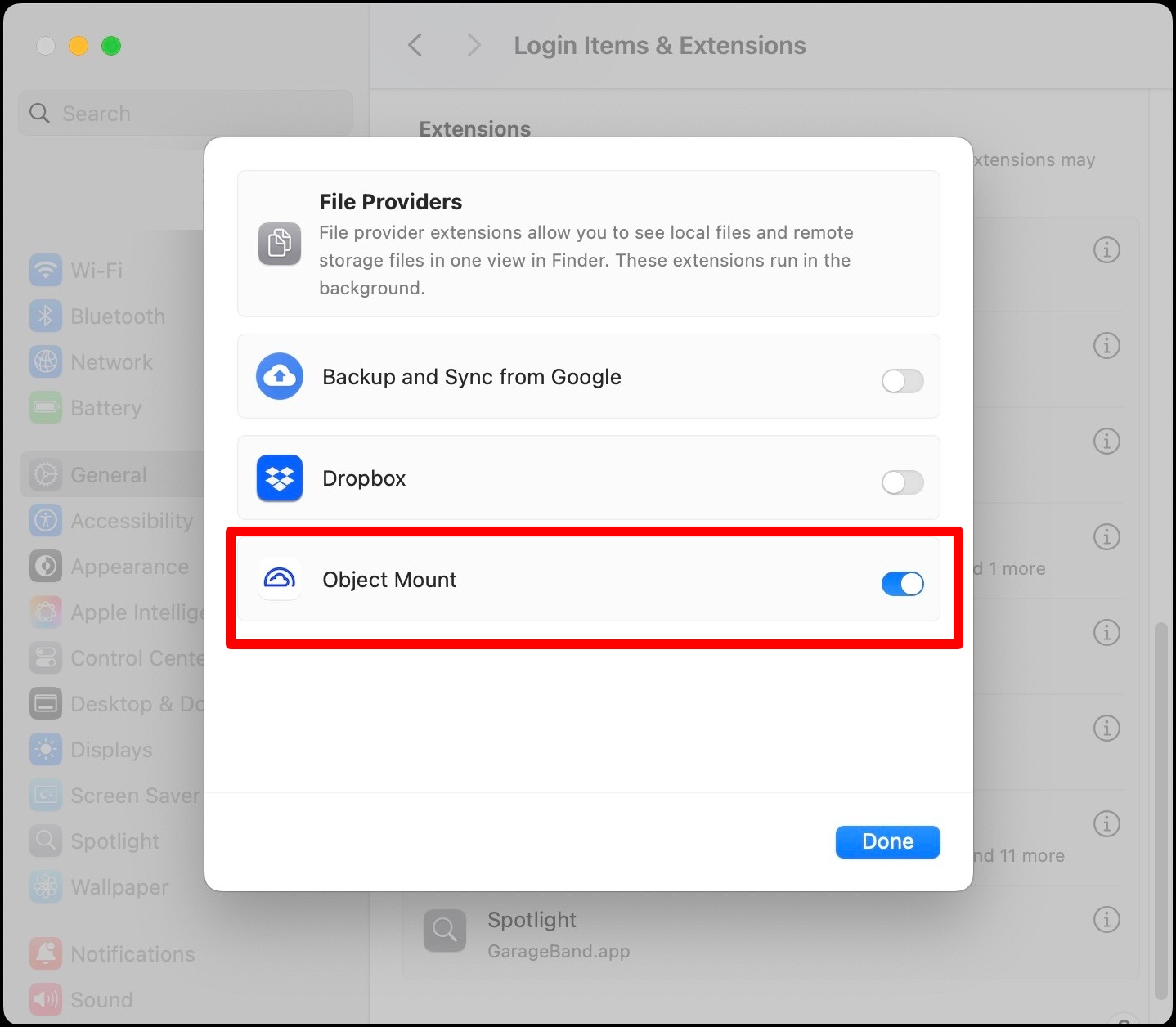
Click the Info Circle
(i)next to File System Extensions.- Activate the slider for macFuse and click Done.
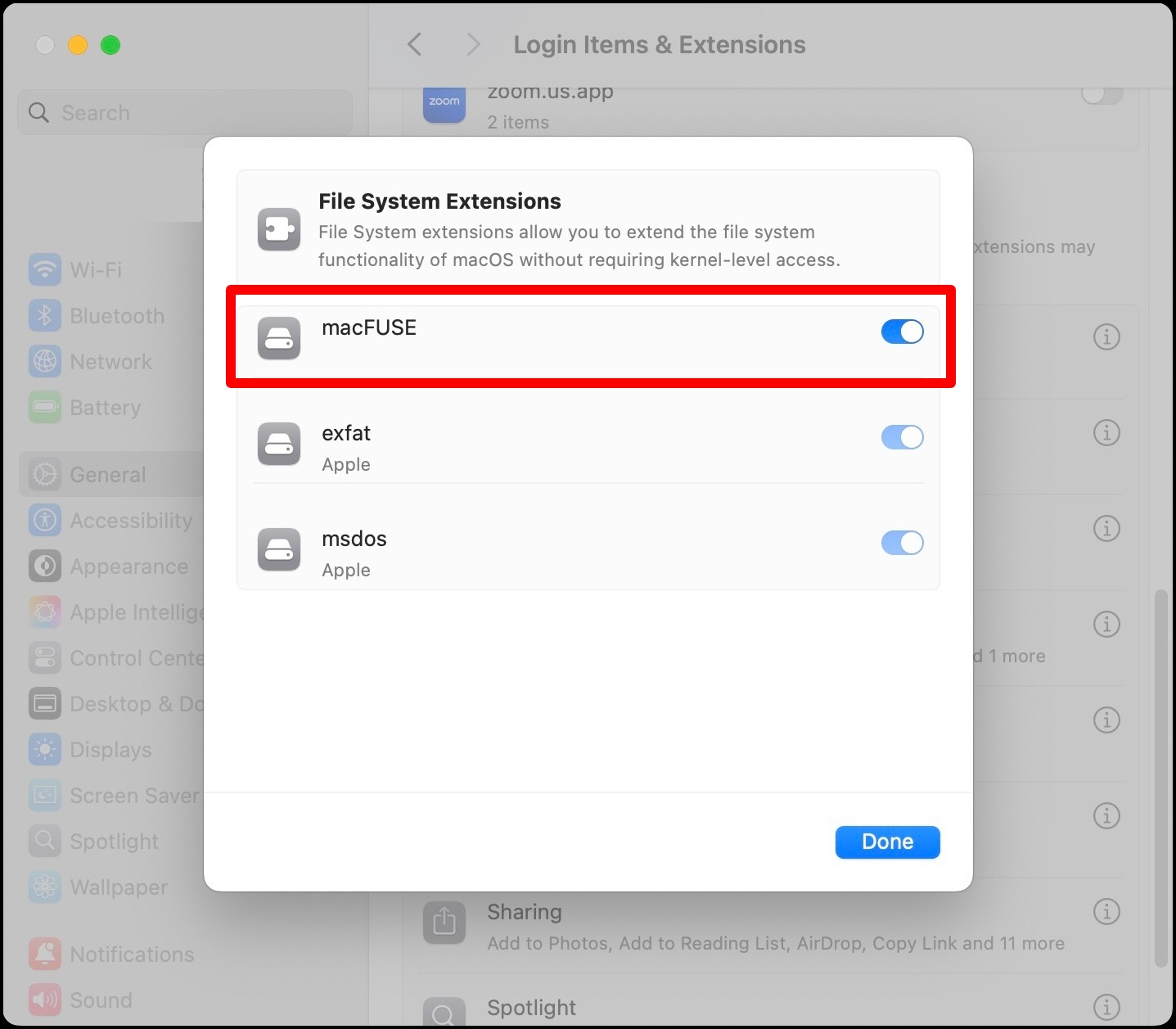
Once enabled, you will see the new “right-click” options in the Finder.
“Right-Click” Options
You may need to right-click more than once to activate the extension for the first time. If necessary, reboot your Mac to see the new menu items.
When to Use Fast Copy or Fast Move
Using Fast Copy or Fast Move is ideal when you want to:
- Move large files (media footage, projects, renders, etc.) or large folder trees from a local disk to a mounted S3 bucket
- Copy large files or folders from one Object Mount volume to another Object Mount volume
- Improve performance on high-latency networks (or slow remote S3 endpoints)
- Avoid the bottlenecks of the Finder’s standard file operations
How Fast Copy and Fast Move Work
Standard copy and move actions performed by the Finder use the native macOS file system’s I/O calls. These standard file operations copy data one block at a time, without any awareness of how cloud storage works. This can lead to slow performance — especially for large files or nested folder structures.
Fast Copy and Fast Move bypass these standard OS-based read/write calls and instead:
- Use Object Mount’s optimized S3 transfer logic
- Support multipart and parallel uploads
- Automatically manage metadata and cloud layout
- Integrate directly with your mount’s caching settings
Behind the scenes, Fast Copy and Fast Move:
- Leverage both the Finder Extension and Object Mount’s core engine
- Use direct S3 transfer logic, not shell scripting or AppleScript
- Respect your mount settings (e.g.: POSIX mode, cache location)
- Log operations to the standard Object Mount log file
Use Cases for Using Fast Copy and Fast Move
- Store original media locally, then Fast Move it to the cloud when ready.
- For large archive folders, use Fast Copy to quickly duplicate them into your S3 bucket.
- Use Fast Move to free up local storage when archiving to the cloud.
Global Features & Concepts
See the many articles in the Appendix for additional details on features that apply to Object Mount on all operating systems (macOS, Windows, and Linux):
- Object Storage Core Concepts
- POSIX explained
- S3 Credential Management
- Supported S3 Providers
- Performance Tuning
- Troubleshooting Guide
- FAQ
- Release Notes