Libuplink mode (Storj only)
Object Mount can connect to Storj’s Distributed Cloud Storage offering as well using Storj libuplink. This connection method is read only and designed for the quick data migration from Storj Object Storage.
Obtaining a latest version of Object Mount
Install and reboot if asked
Obtaining an access grant for your Storj project
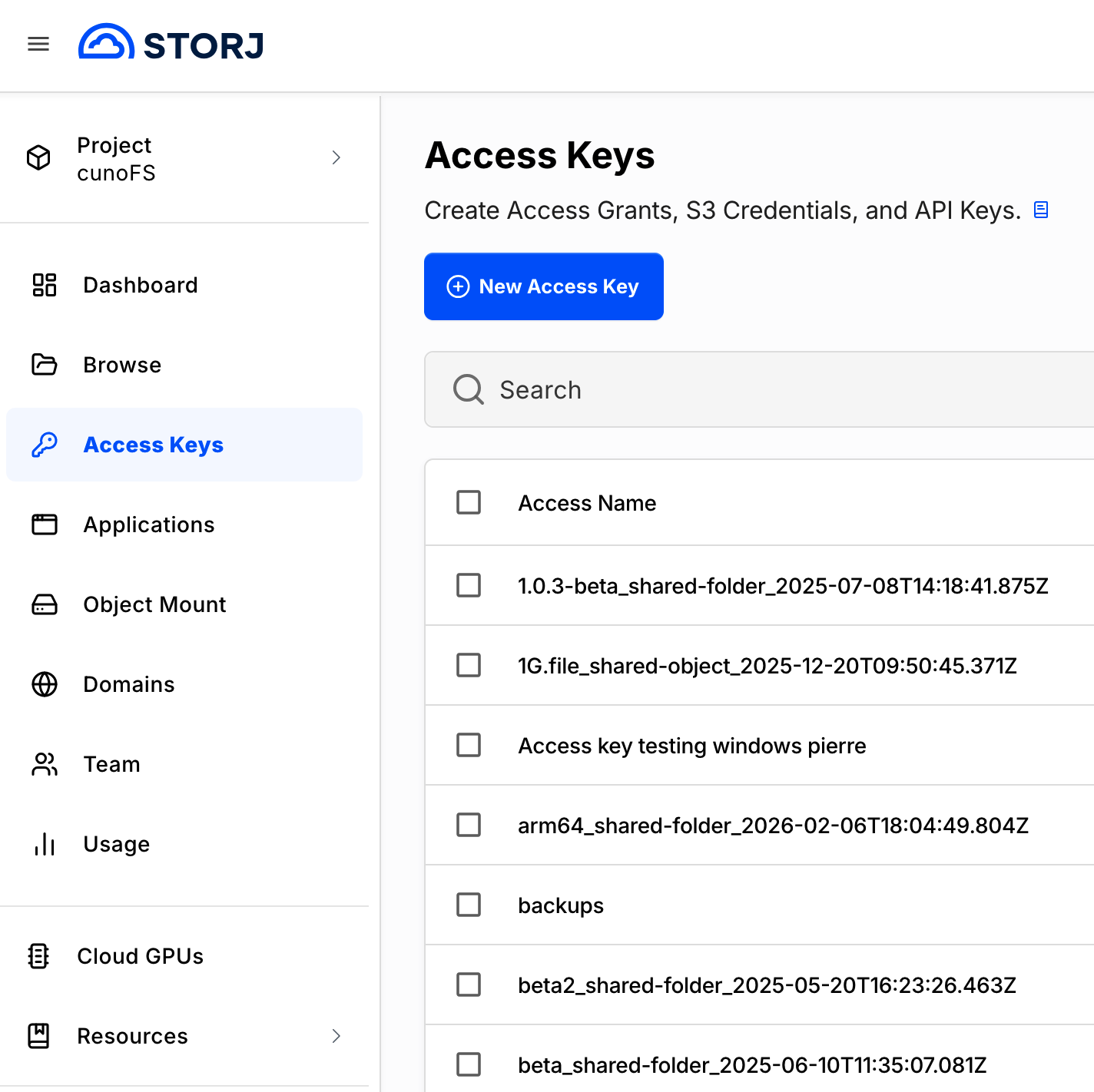
Open your project in Storj web portal, go to Access Keys
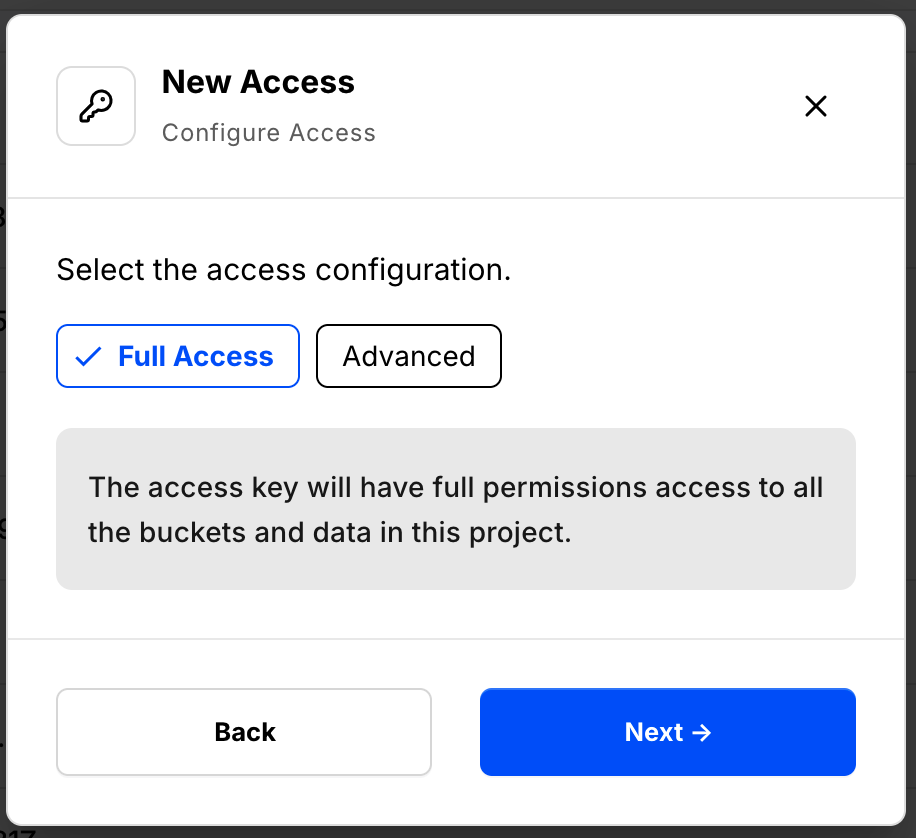
and create a new access grant: 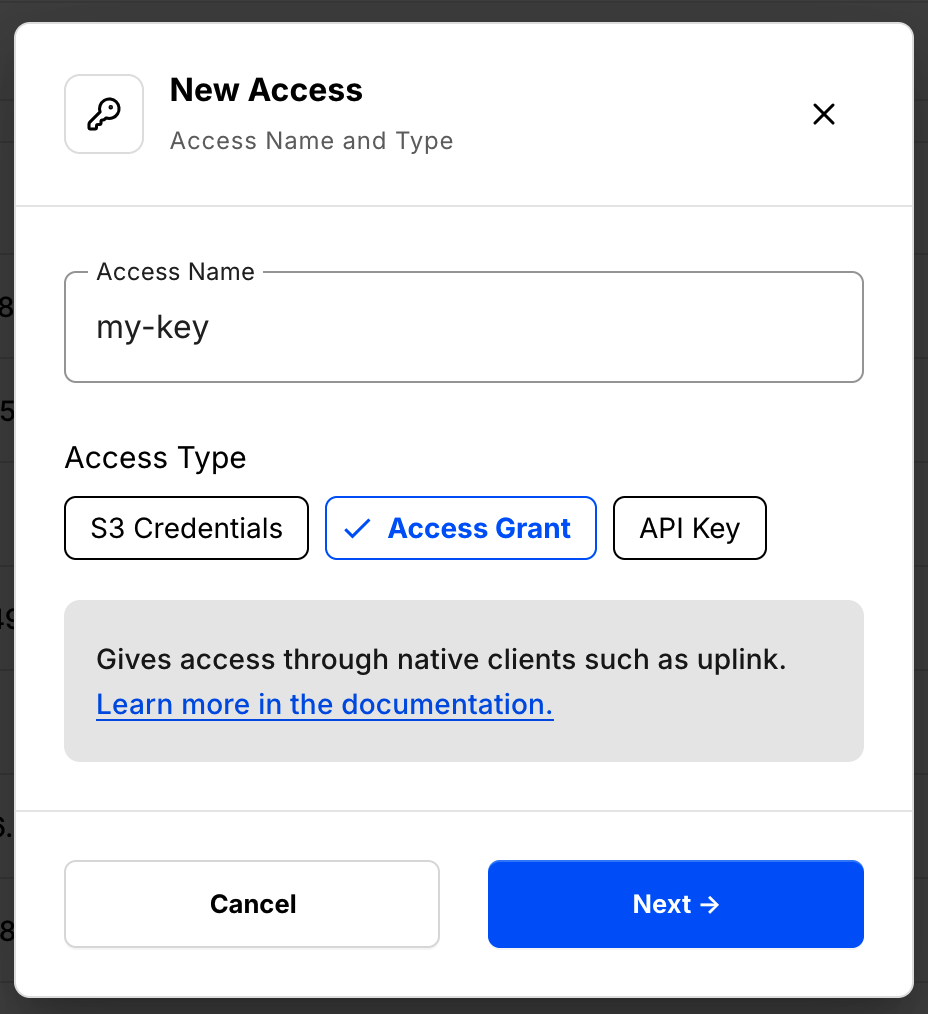
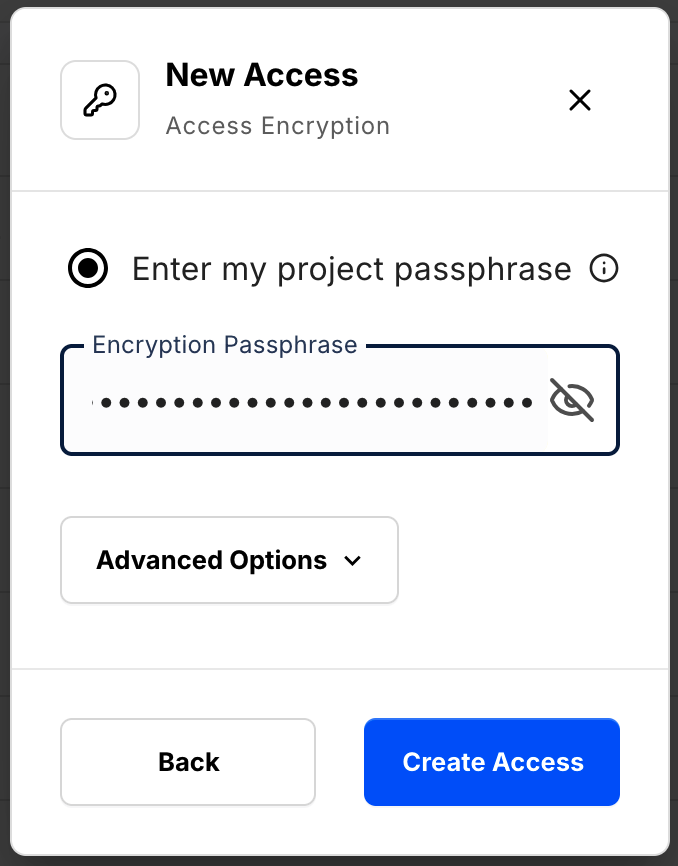
If you have a project with a Manual encryption phrases management, then you need to provide your encryption phrase, used to upload previous objects.
This passphrase is important! Encryption keys derived from it are used to encrypt your data at rest, and your data will have to be re-uploaded if you want it to change!
Importantly, if you want two access grants to have access to the same data, they must use the same passphrase. You won’t be able to access your data if the passphrase in your access grant is different than the passphrase you uploaded the data with.
Please note that Storj does not know or store your encryption passphrase, so if you lose it, you will not be able to recover your files.
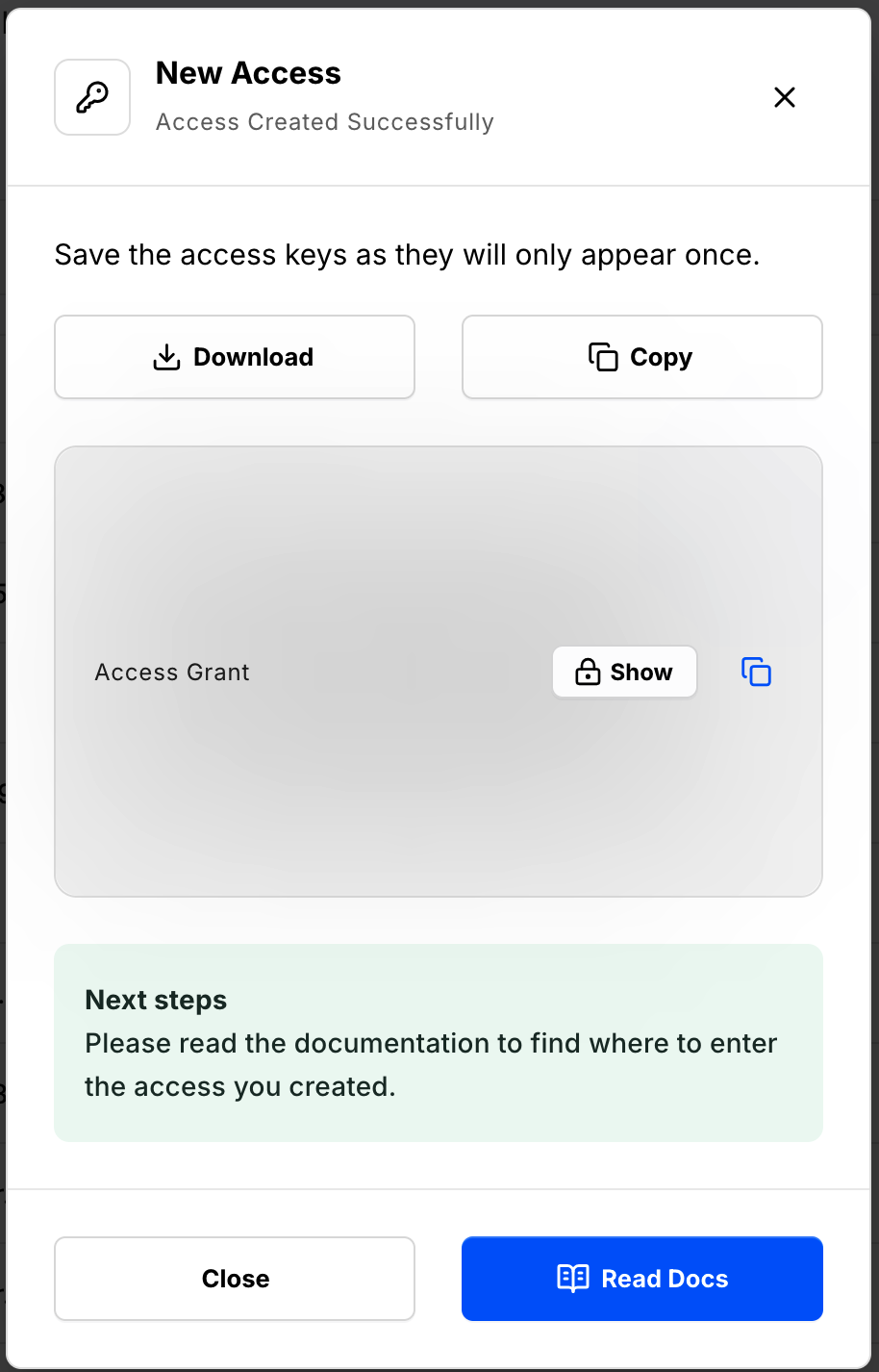
Configure a new Credentials record
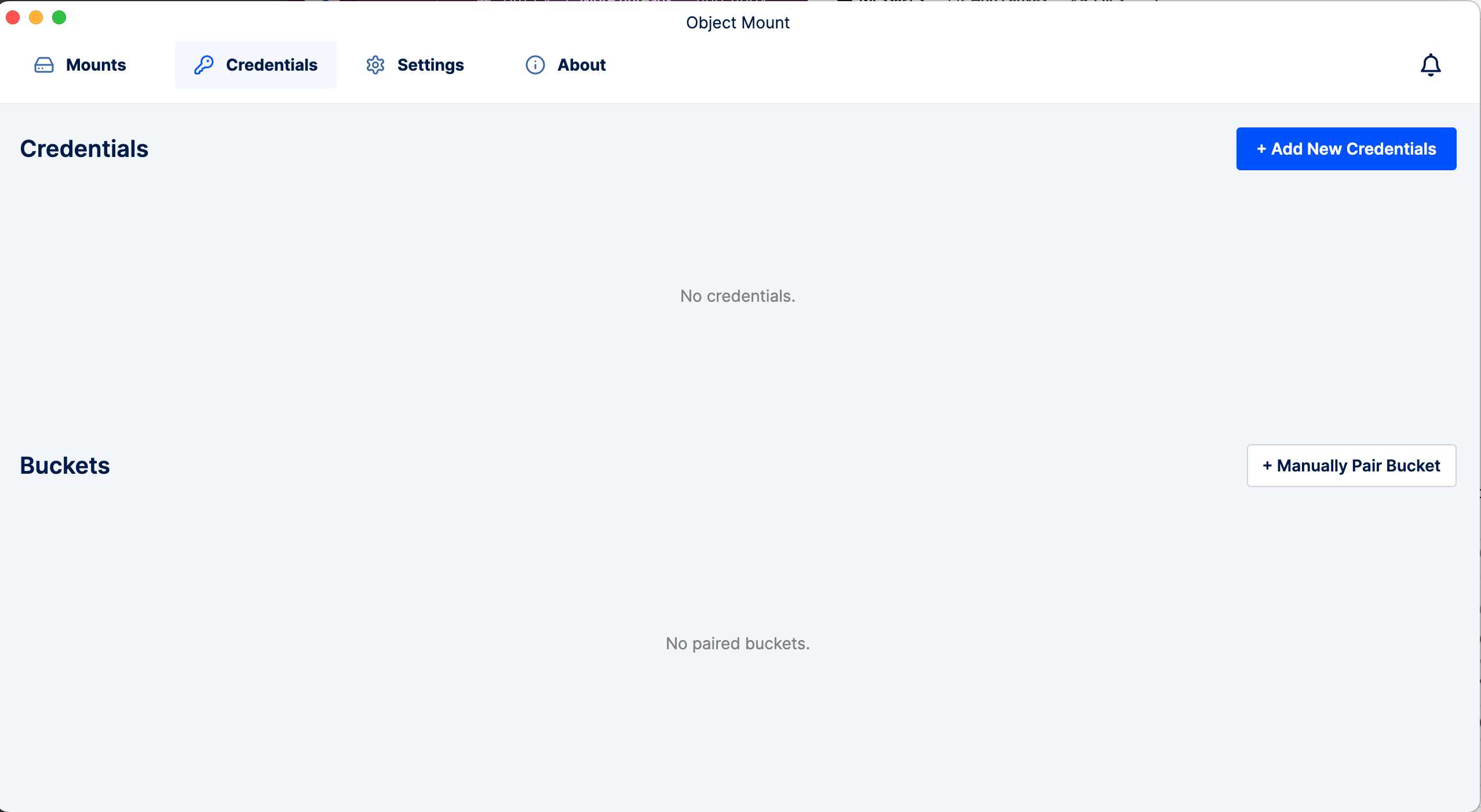
- Open Object Mount, navigate to Credentials > Add New Credentials
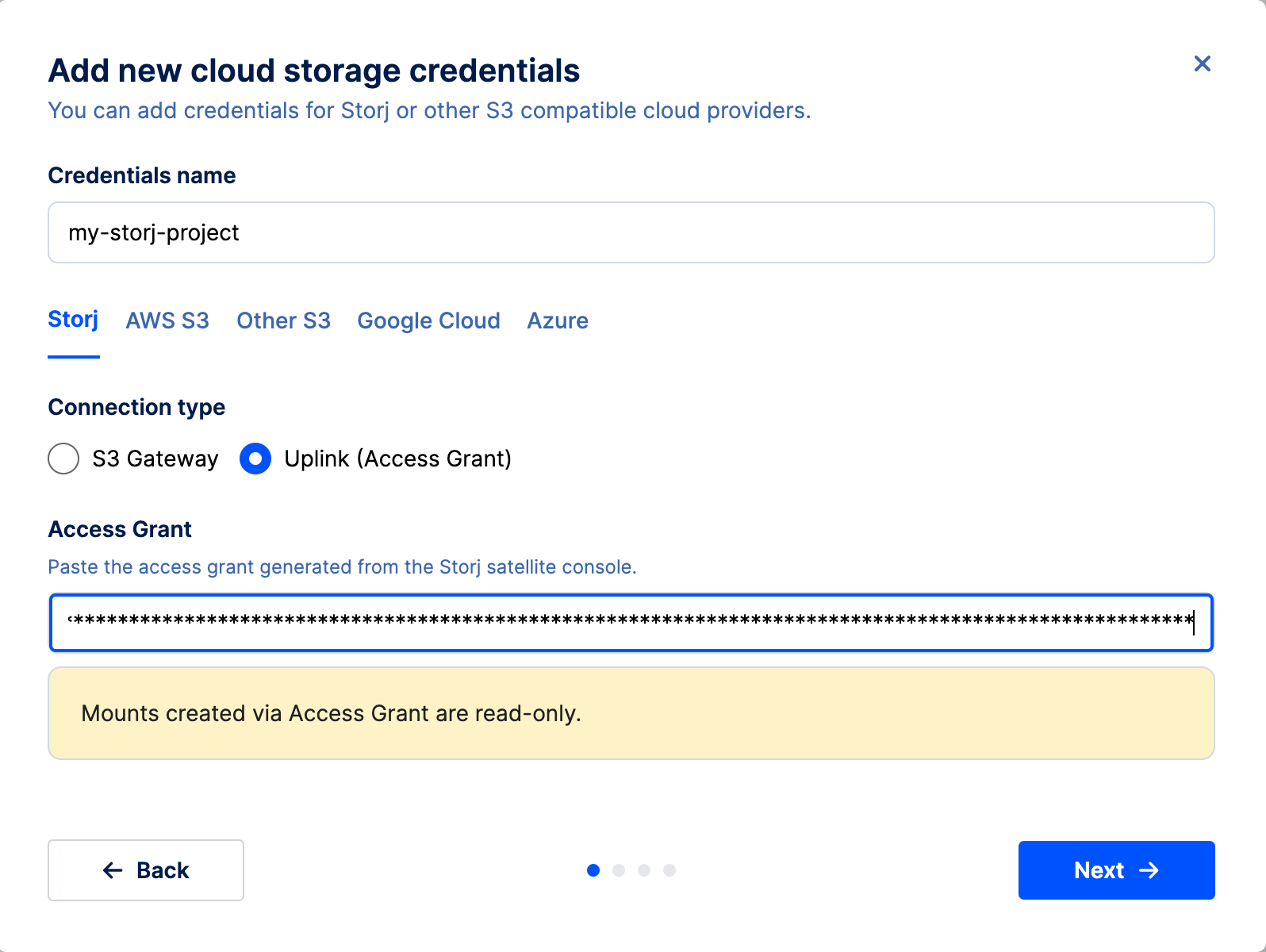
- Select Storj, switch to Uplink (Access Grant) and paste the access grant created previously
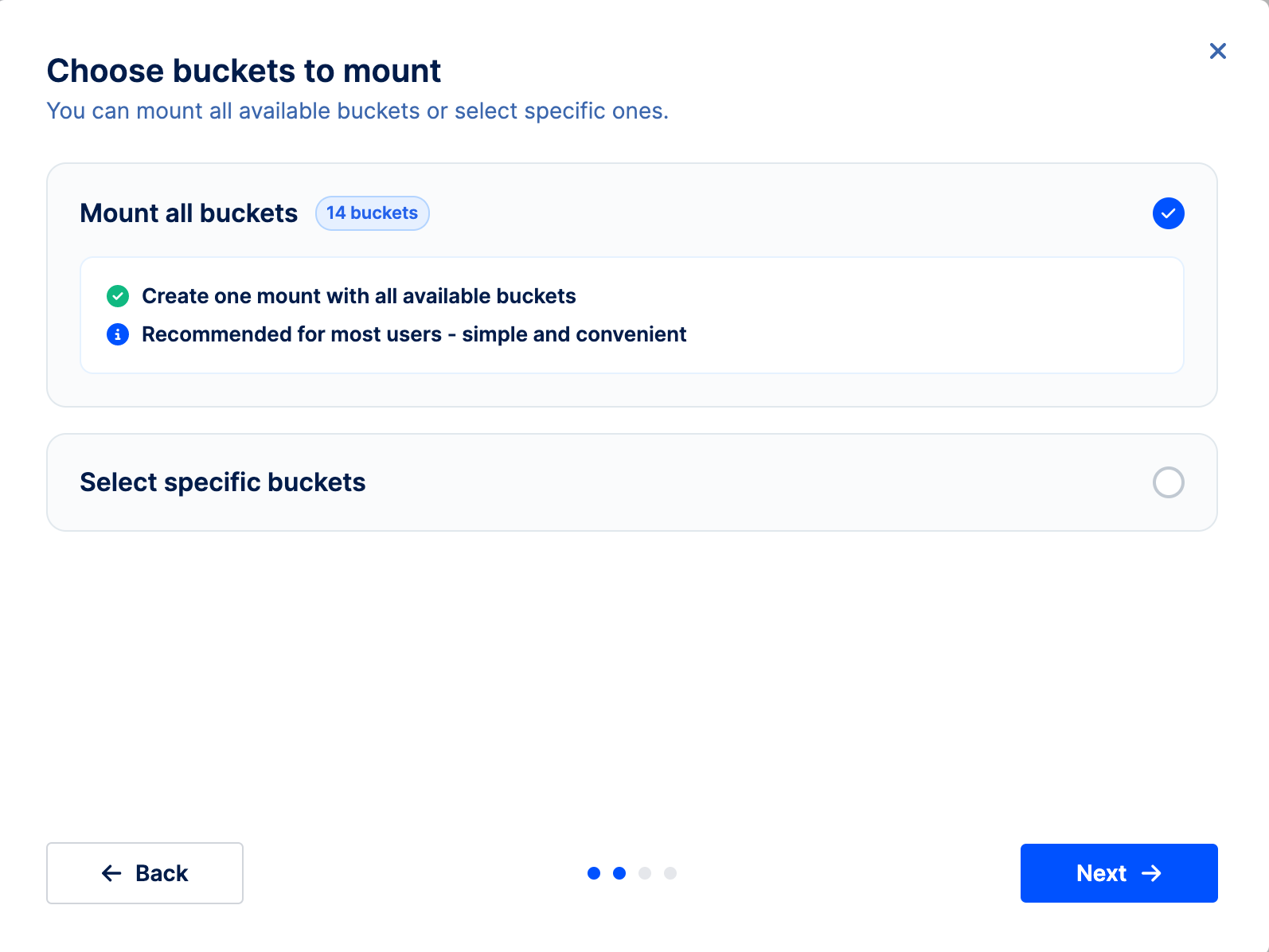
- Complete the procedure by selecting all buckets or specific buckets you want to add to the mount
Add a new Mount
Navigate to Mounts and create additional mounts if desired using Create New Mount and specifying buckets and mount points.
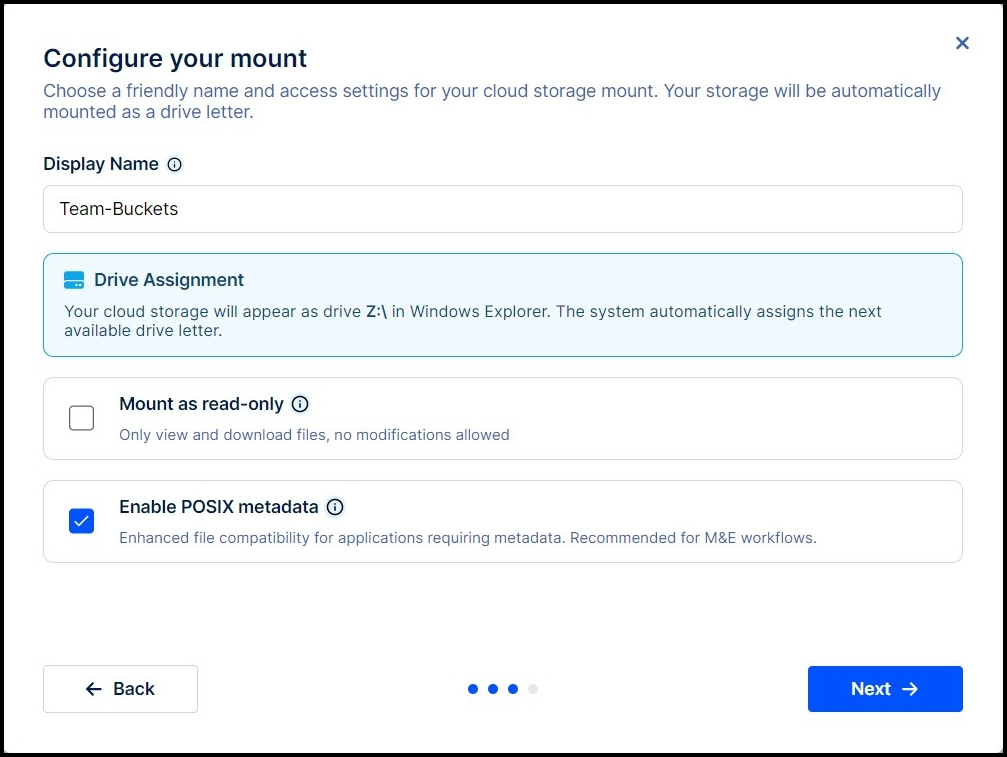
See User Guide for Windows.
Mount a bucket with a new Mount
Enable one of the added mounts and use it as a read-only file system to migrate the data.
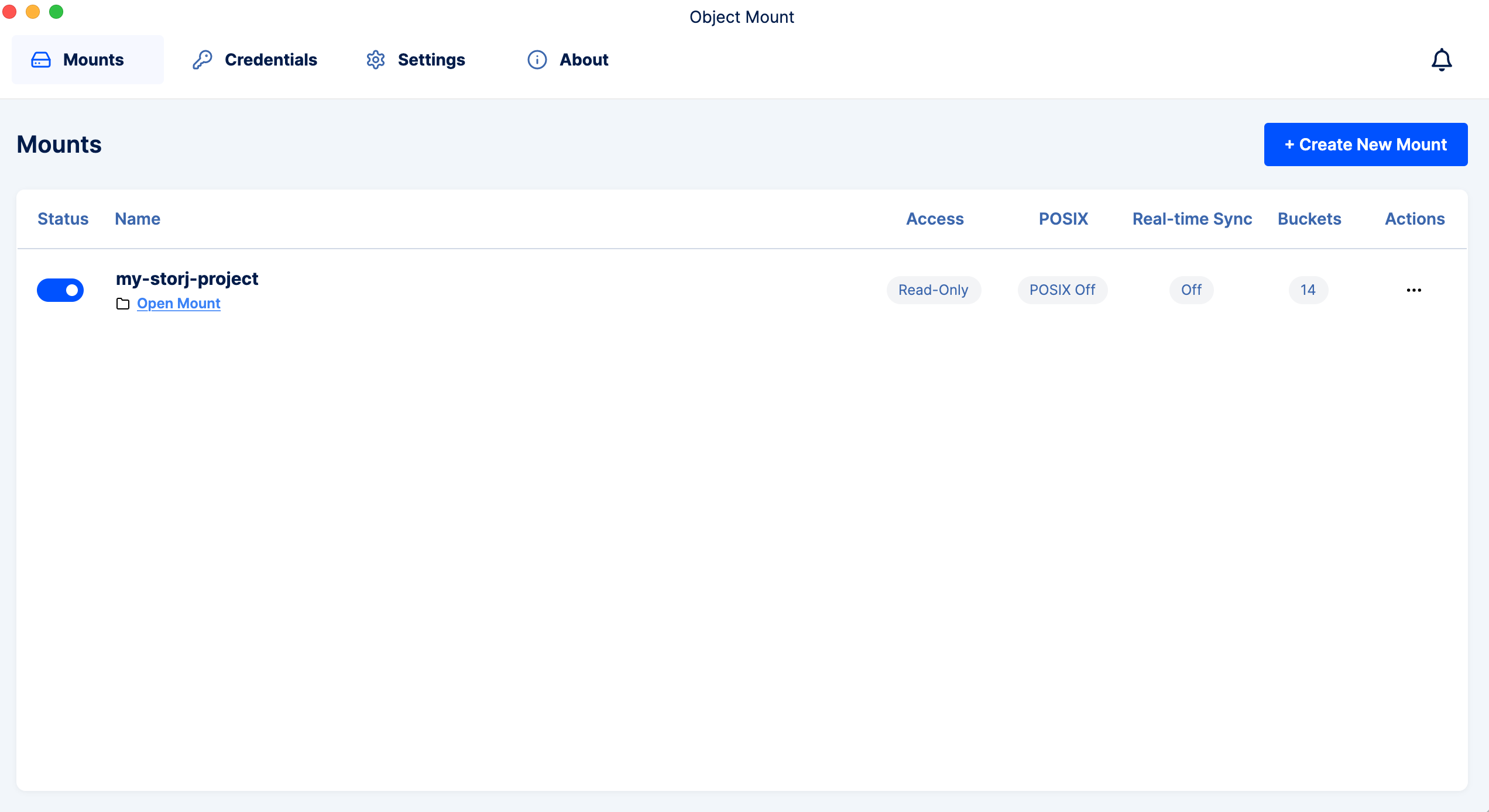
See the Advanced Guide article Advanced Credential Options for additional credential options.